This section provides guidance on how to remove a resource. These resources are essential for administrators to effectively manage user access and enhance security protocols within the organization.
-
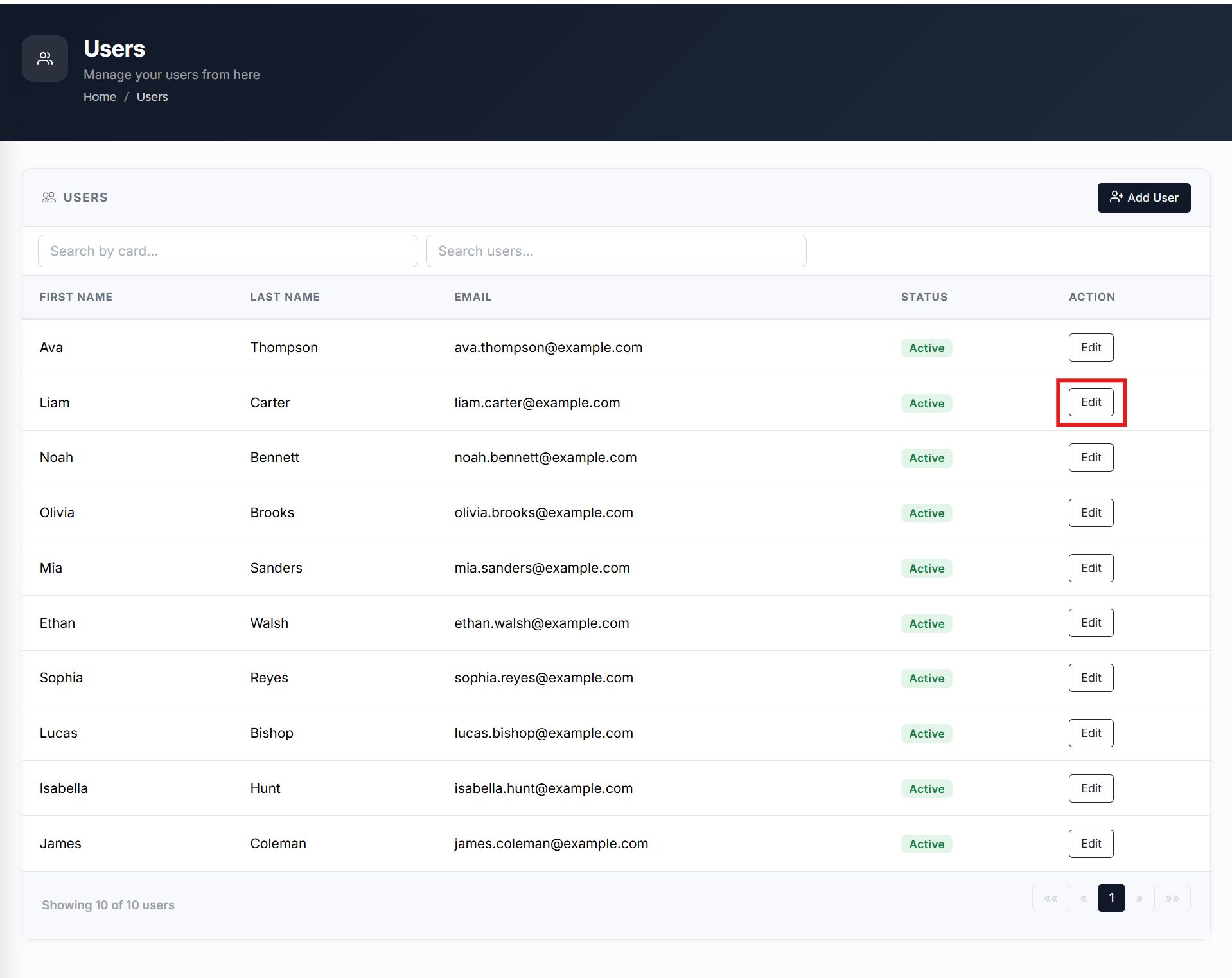
From the Home page, click on Users to open the Users - Manage your users from here page displaying the list of existing users.
or
In the Home page, go to the Users option from the left navigational pane and click on it. The Users -
Manage your users from here page opens up displaying the list of existing users.
-
In the Search Users field, type the name of the user you want to search and hit Enter. List of the searched users are displayed.
-
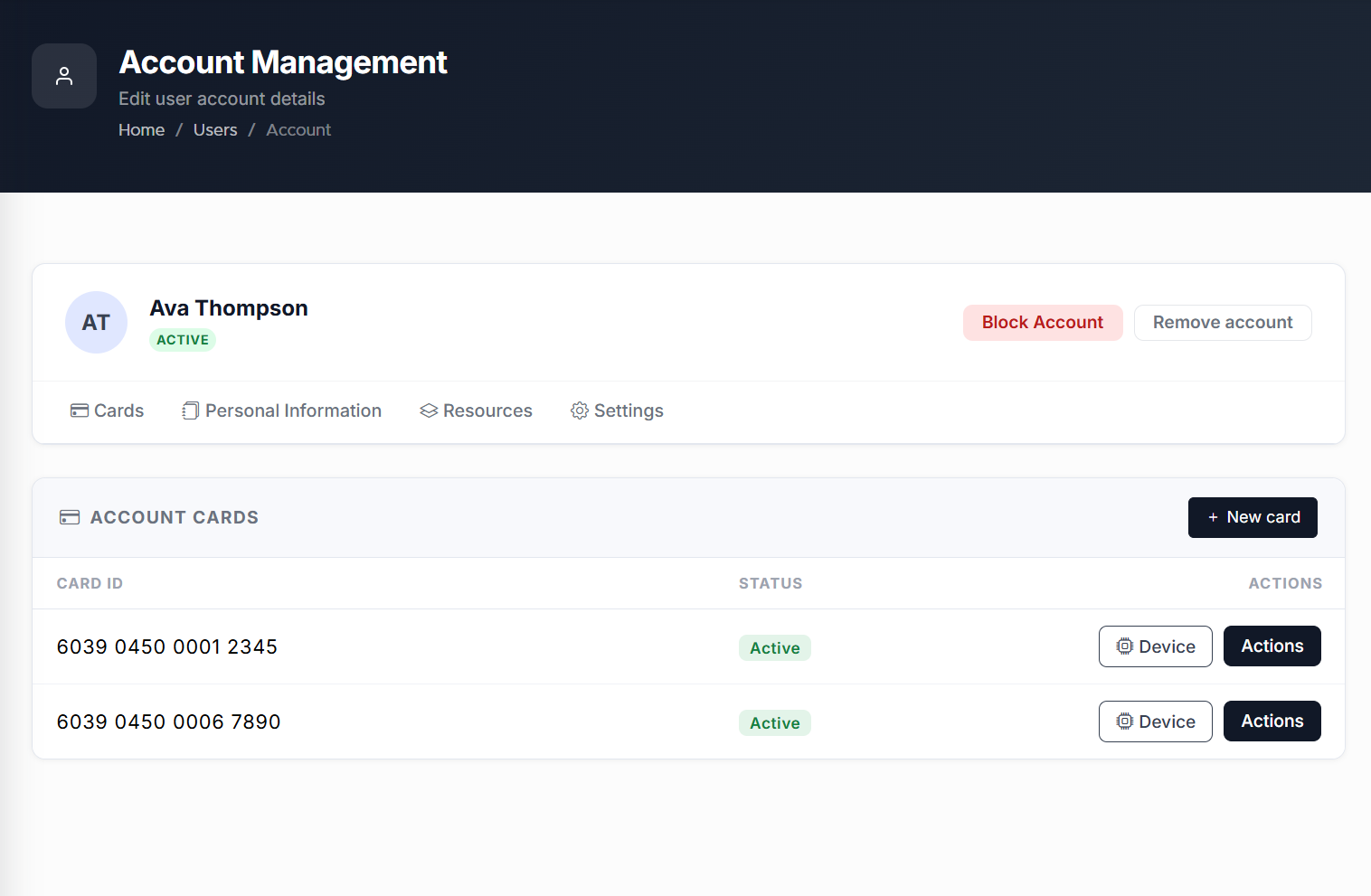
Click Edit to navigate to the Users records. The User’s Account Management page opens up displaying the list of User's Keyek Cards info.
-
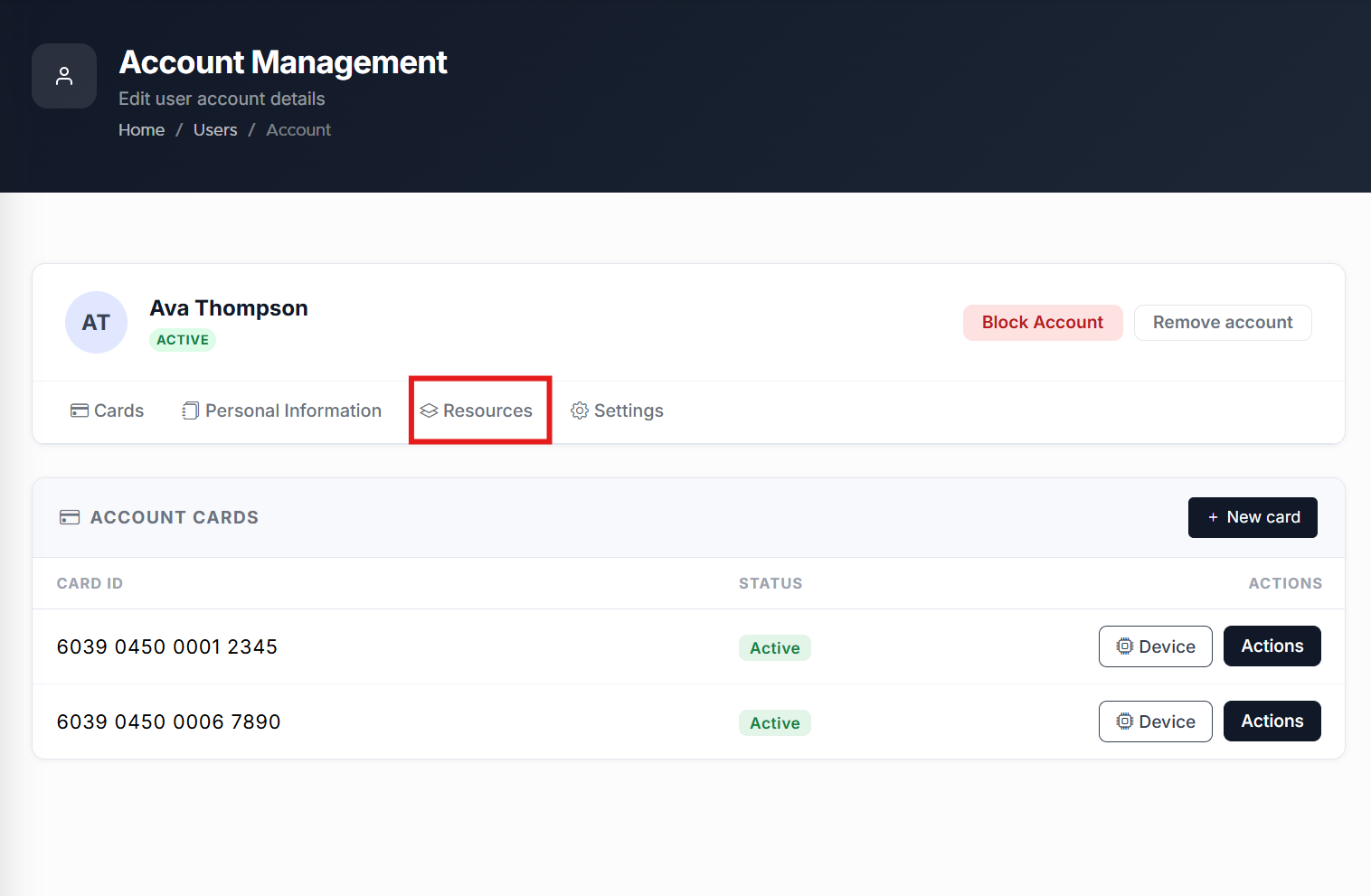
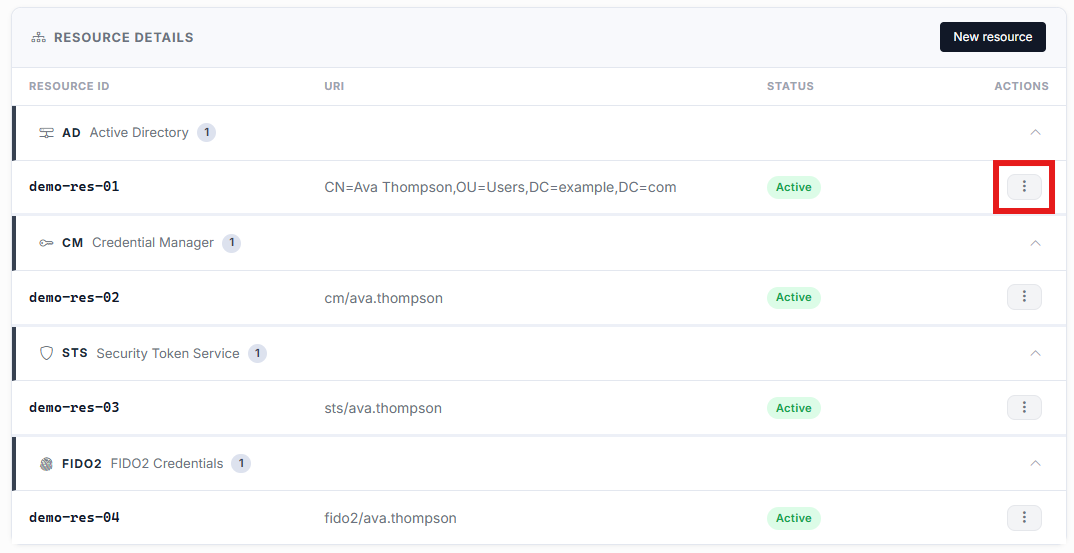
Go to the Resources tab and click on it. The Resources details page opens up displaying the list of all the existing resources added to the user.
-
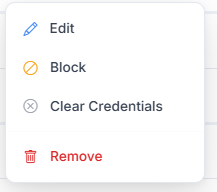
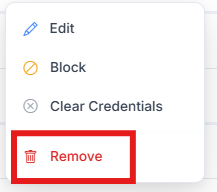
Click the elipsis (three dots) menu on the right side of the Resource you wish you edit, and select ‘Remove’.
-
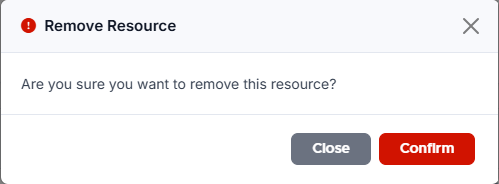
Click Confirm if you wish to proceed with removing a Resource. A message stating Resource is removed successfully is displayed upon successfully removing a resource.