
Audit Logs
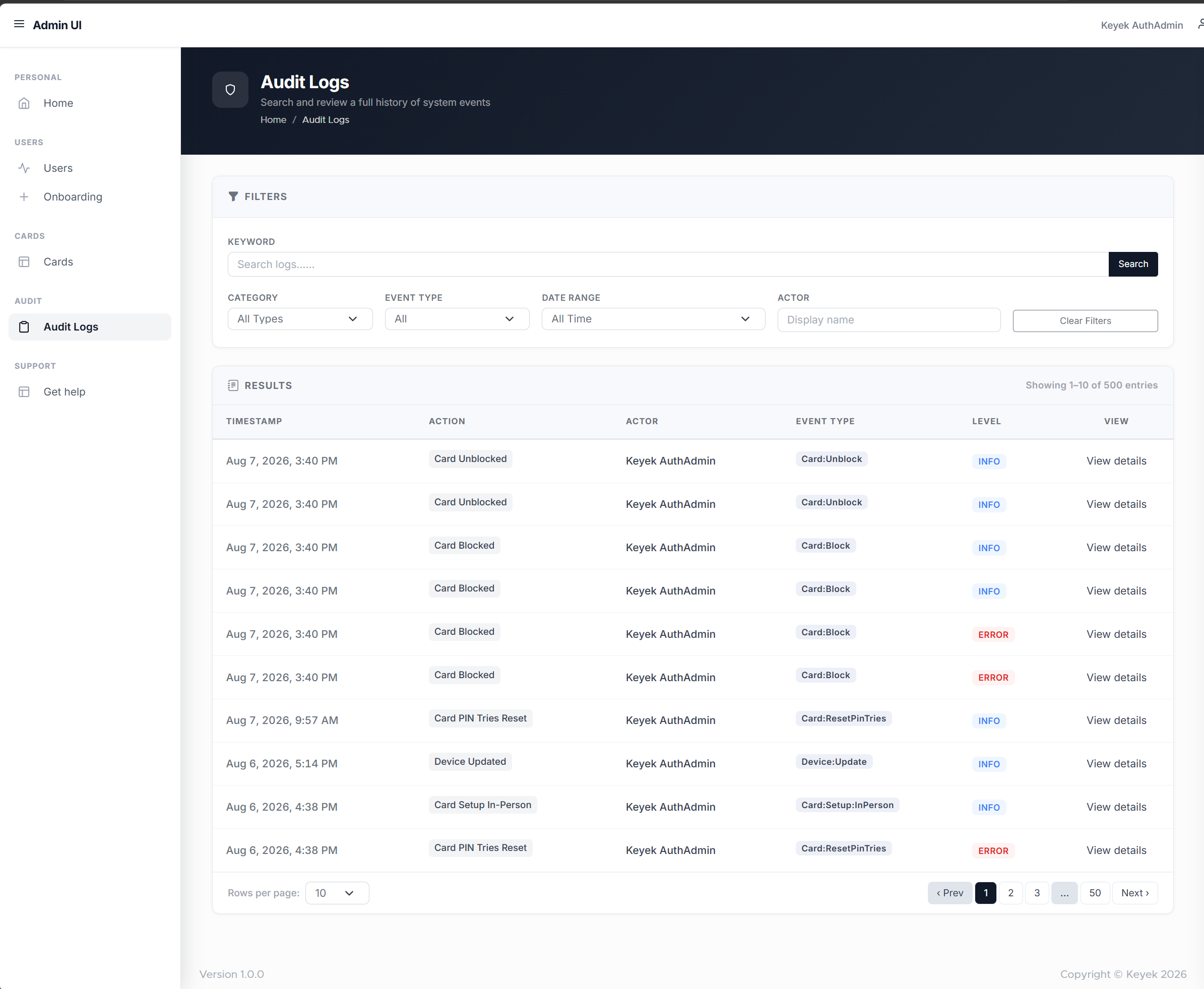
The Audit Logs view provides a searchable, centralised history of system events, giving administrators full visibility into actions taken across the platform. From this view, administrators can review, filter, and investigate activity logs.
Administrators can perform a variety of actions:
-
Search by Keyword: You can search across log entries using keywords to locate relevant events.
-
Filter by Category: Narrow results to a specific area of the system, such as Authentication, Security, Card Management, User Management, Resource Management, or Device Management.
-
Filter by Event Type: Further refine results to a specific type of event within a category, using the Event Type list.
-
Filter by Date Range: View events from All Time, the Last Hour, the Last 7 Days, or a custom date range.
-
Filter by Actor: Search for events performed by a specific user, using their display name.
-
View Log Entry Details: Click into any entry to open a detailed side panel showing the full context of the event, including technical and raw log data.
The Audit Logs view ensures that all significant system activity is transparent and traceable, supporting compliance, troubleshooting, and security investigations.
By clicking on the Audit Logs option under the Audit section of the side navigation, the view will display a searchable list of system events and their key details, such as the timestamp, action, actor, event type, and severity level.
Understanding the Audit Log List
Each row in the audit log table displays:
|
Column |
Description |
|---|---|
|
Timestamp |
The date and time the event occurred |
|
Action |
A readable summary of what happened |
|
Actor |
The user who performed the action (shown as "—" if not applicable) |
|
Event Type |
The specific type of event recorded |
|
Level |
The severity of the event: INFO (success), WARNING (attempted), or ERROR (failed) |
The number of results is shown as "Showing X–Y of Z entries," and results can be paged through using the pagination controls at the bottom of the table, with a choice of 10, 25, or 50 rows per page.
Viewing Log Entry Details
Clicking View details on any entry opens the Log Entry Details panel, which provides:
-
Actor information: Name, email, and user ID of the person who performed the action
-
Event details: Category, application, message, action code, and any relevant identifiers (e.g. card IDs, status changes, changes summary, linked or target user, recipient email)
-
Technical details: IP address, correlation ID, domain, outcome, log level, and user agent
-
Raw Log Data: The complete underlying JSON record, for deeper technical investigation