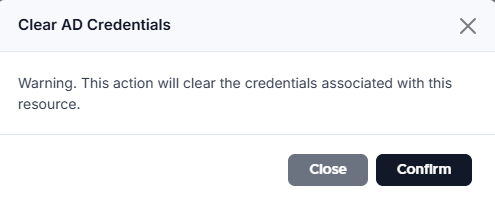
Purpose
The Clear AD Credentials function allows administrators to resolve situations where a user’s Active Directory (AD) password becomes out of sync with Bureau of ID (BoID). While Keyek and BoID automatically manage AD password resets based on resource settings such as ChangePassFreq and CanSetPass, they cannot detect when a password is manually reset directly in AD. This mismatch prevents the user from authenticating correctly through Keyek.
Symptoms: Users may see error message “Account Error” when attempting to login using a Keyek Card.
By using this function, you can clear the stored credentials for the resource, forcing Keyek to replace the user password on the next login.
When to Use
Use Clear AD Credentials in the following scenarios:
-
A user’s AD password has been manually reset in AD and is no longer in sync with Keyek.
-
A user is unable to log in because their credentials are invalid or outdated.
Steps to Clear AD Credentials
-
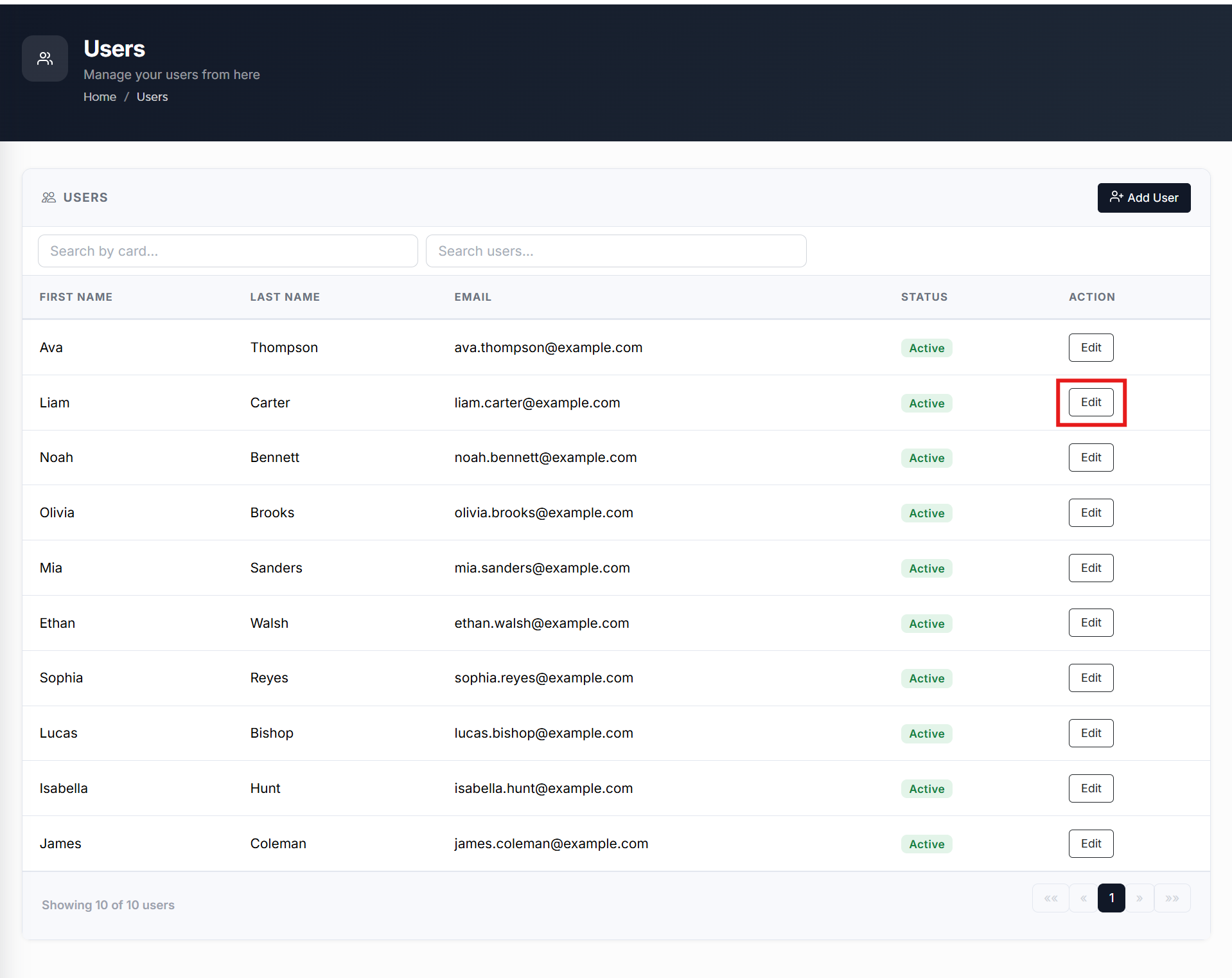
From the Home page, click on Users to open the Users - Manage your users from here page displaying the list of existing users.
or
In the Home page, go to the Users option from the left navigational pane and click on it. The Users -
Manage your users from here page opens up displaying the list of existing users.
-
In the Search Users field, type the name of the user you want to search and hit Enter. List of the searched users are displayed.
-
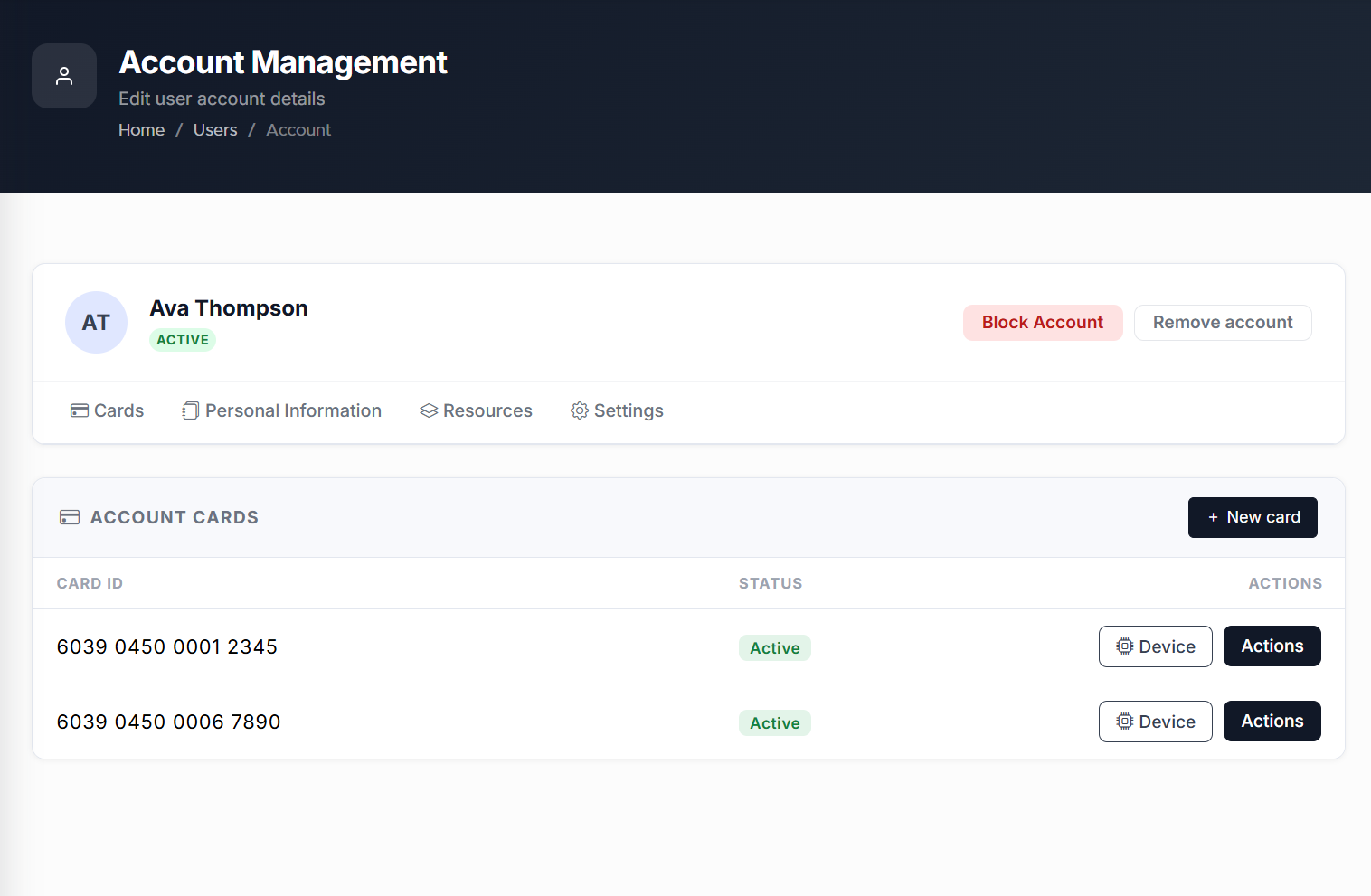
Click Edit to navigate to the Users records. The User’s Account Management window opens displaying the list of Users Keyek Cards info.
-
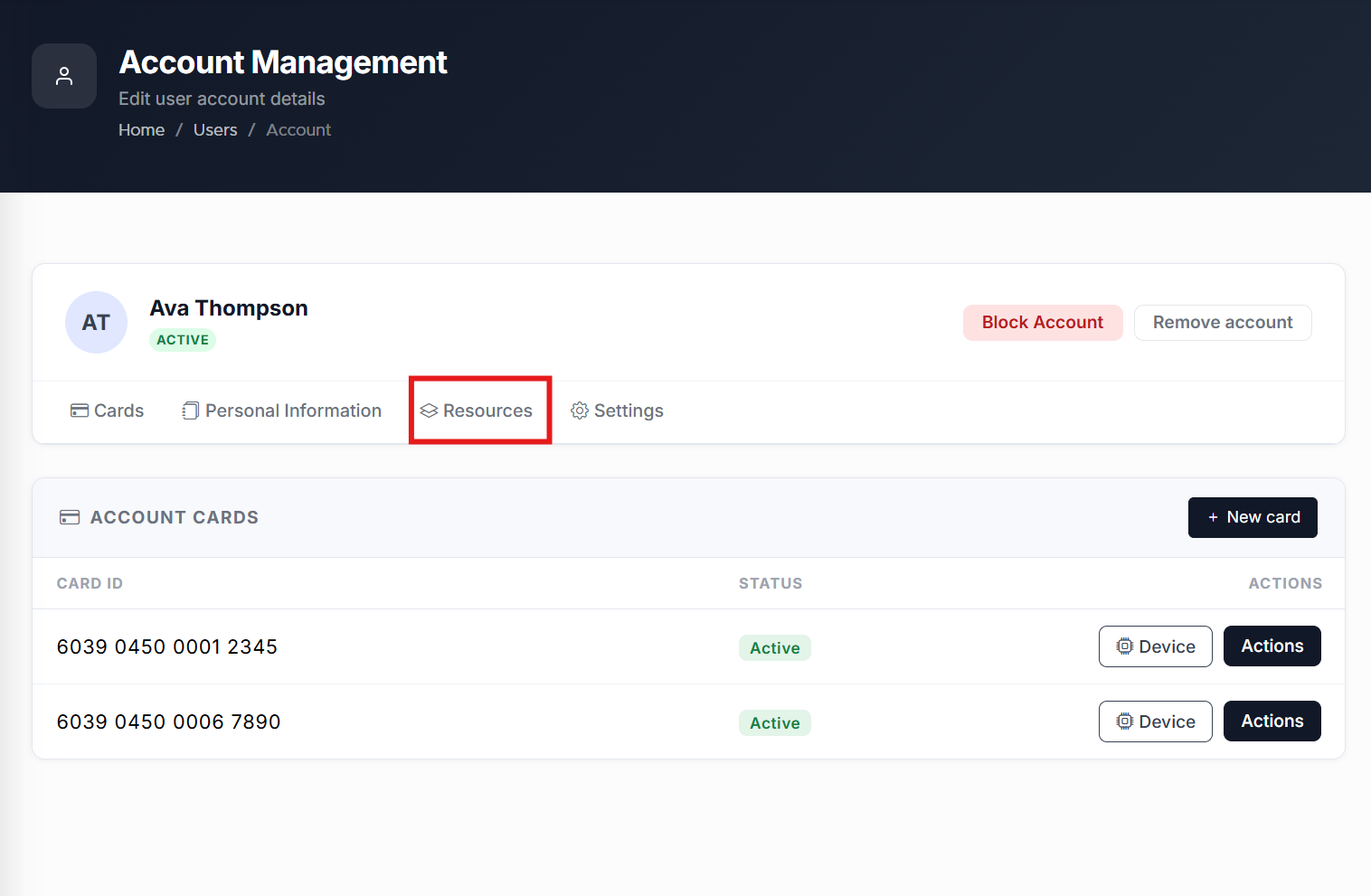
Go to the Resources tab and click on it. The Resources details page opens up displaying the list of all the existing resources added to the user.
-
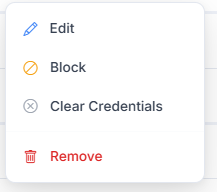
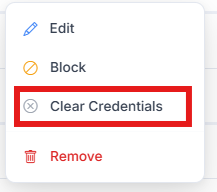
Select the ellipsis (three dots) menu on the right side of the Resource you wish to Clear Credentials for.
-
Click Confirm if you wish to proceed with clearing the credential associated with this Resource. A message stating AD Credentials cleared successfully is displayed upon successfully clearing the credentials.