
If a user enters their PIN incorrectly three times, the Keyek Card will enter a Security Lockout mode. Once a Keyek Card enters this mode, users will no longer be able to complete authentications, or allow the user to access any Keyek Card functions that require their PIN to access.
To release this mode an Administrator action is required, and there are 2 potential pathways depending on whether the user knows their PIN or has forgotten their PIN.
The following prerequisites must be met for this Admin Function
-
The User has an account that has been configured to log in with Keyek.
-
The User has been issued with a Keyek Card and the PIN is set.
-
The User has entered an incorrect PIN more than 3 times and the Keyek Card displays the ‘Too many Retries’ error message when attempting to login to Windows.
PROCEED WITH CAUTION
If a user has forgotten or does not know their PIN, they can be guided through the PIN reset process outlined in the Card Setup. Because this process grants access to the user's account through their Keyek Card, it is essential to verify that the person requesting assistance is the legitimate account owner before proceeding.
When completing the Card Setup process, always use the Email Handover method where possible. This requires the user to enter a security code sent to their registered email address before a new PIN can be created, providing an additional layer of identity verification.
Only use In Person Handover if the user cannot access their email account and you are able to verify their identity through other approved methods.
If a user has accidentally triggered Security Lockout but still knows their PIN, use the Reset PIN Tries function. This will temporarily clear the Security Lockout status and allow the user to sign in using their existing PIN.
No PIN reset is required if the user can successfully authenticate with their current PIN.
-
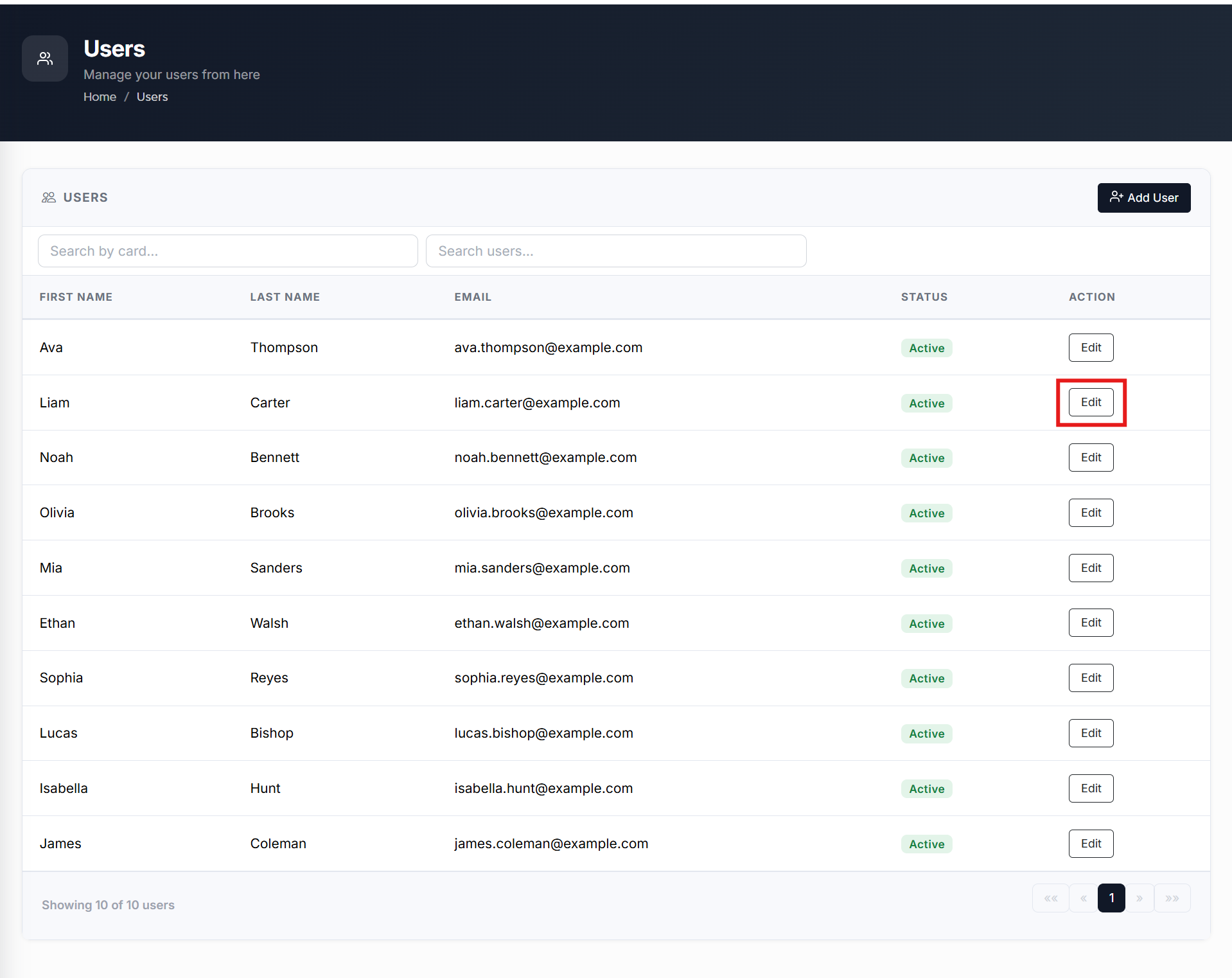
From the Home page, click on Users to open the Users - Manage your Users page displaying the list of existing users.
or
In the Home page, go to the Users option from the left navigational pane and click on it. The Users - Manage your users from here page opens up displaying the list of existing users.
-
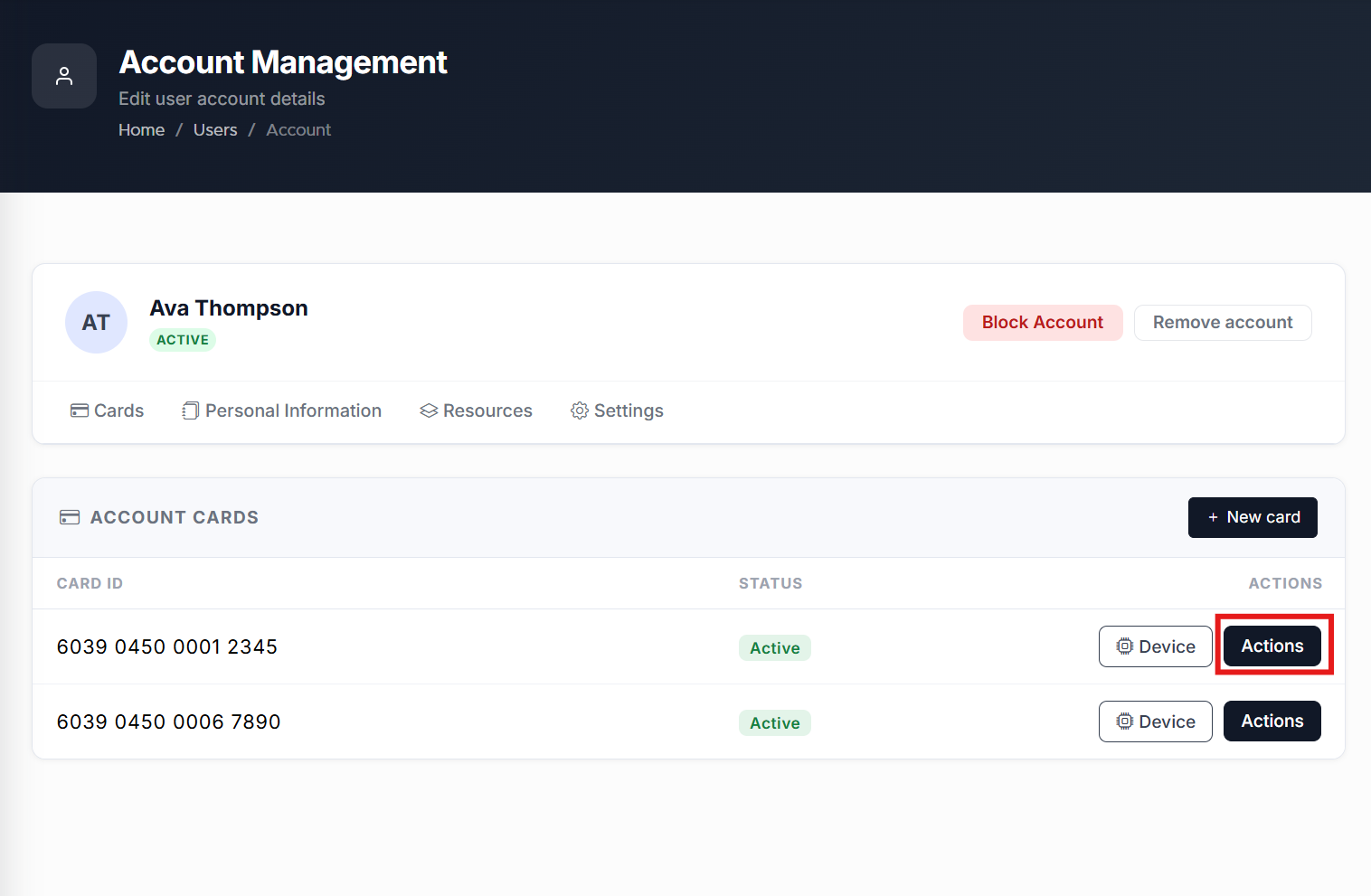
Navigate to the user you wish to make necessary changes to and click Edit. The Users Account Management page opens displaying the list of Account Keyek Cards information.
-
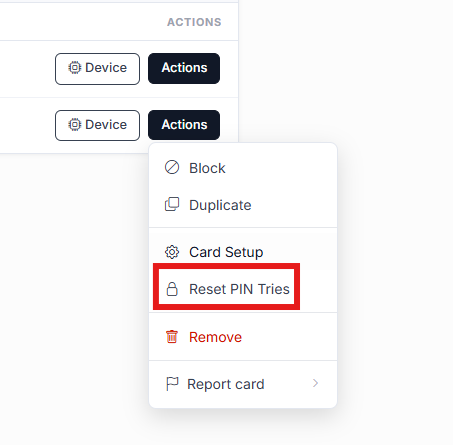
Navigate to the users relevant Keyek Card you wish to reset the PIN tries and click Action button. From the drop-down, select Reset Pin Tries option.
-
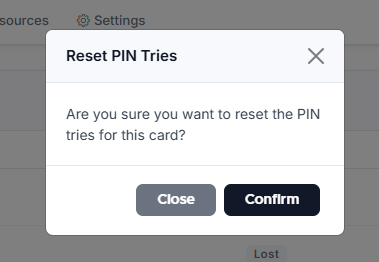
The Reset PIN Tries window opens.
-
Click Confirm. A message confirming the PIN tries have been reset is displayed when the action is completed.
-
The user should be instructed to attempt to sign in again using their PIN.