
This process sets a flag in the platform to mark the Keyek Card as Ready to Activate. This enables the distribution of Keyek Cards to users and the setup of their accounts. However, without this flag being set, the Keyek Cards cannot be used.
PROCEED WITH CAUTION
If you are using this method to release a Security Pin Lockout condition, because this process grants access to the user's account through their Keyek Card. Therefore, it is essential to verify that the person requesting assistance is the legitimate account owner before proceeding.
When completing the Card Setup process, always use the Email Handover method where possible. This requires the user to enter a security code sent to their registered email address before a new PIN can be created, providing an additional layer of identity verification.
Only use In Person Handover if the user cannot access their email account and you are able to verify their identity through other approved methods.
There are two methods for setting this flag:
-
In Person – The flag is set immediately.
-
Email – You will receive an email with a 12-digit one-time code (OTC) sent to the primary email address on the KeyekID.
Users must enter the OTC during activation/Login after a PIN Lockout.
-
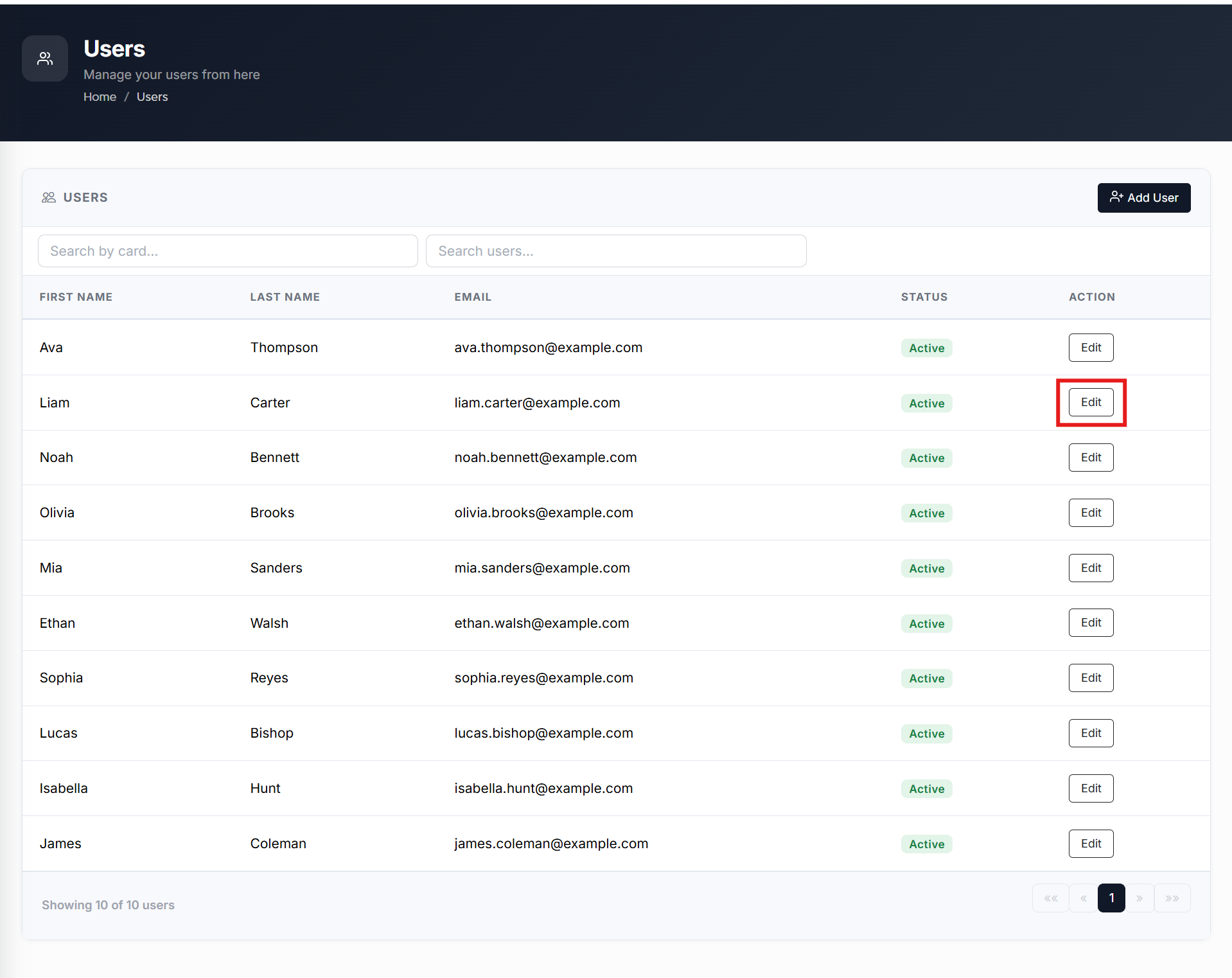
From the Home page, click on Users to open the Users - Manage your Users page displaying the list of existing users.
orIn the Home page, go to the Users option from the left navigational pane and click on it. The Users - Manage your users from here page opens up displaying the list of existing users.
-
Navigate to the user you wish to make necessary changes to and click Edit. The Users Account Management page opens displaying the list of Accounts Keyek Card information.
-
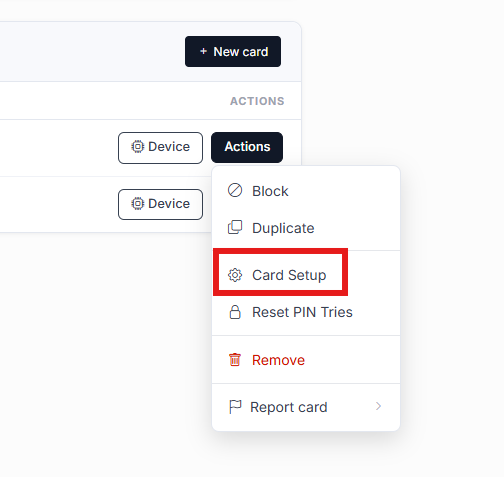
Navigate to the users relevant Keyek Card you wish to setup the card and click Action button. From the drop-down, select Card Setup option. The Card Setup window opens displaying the list of Card Setup options.
-
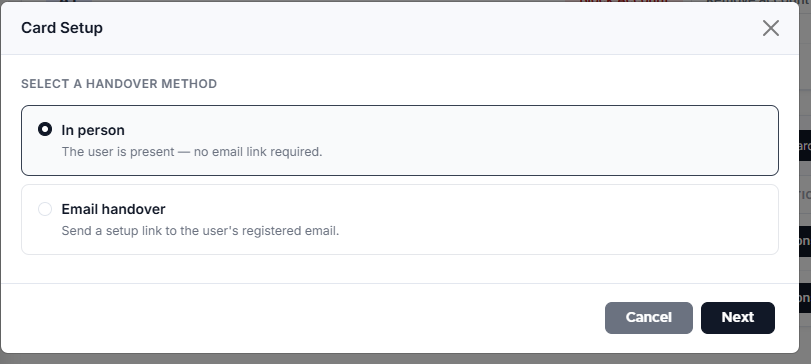
In the Card Setup window, select one of the two Card Setup options from the list:
-
In Person: By default, this option is selected. Retain this selection if you wish to handover the card in person.
-
Email Handover: Select this option, if you wish to handover the card via email.
-
Enter the timeout duration in hours: Enter the timeout duration info.
-
-
-
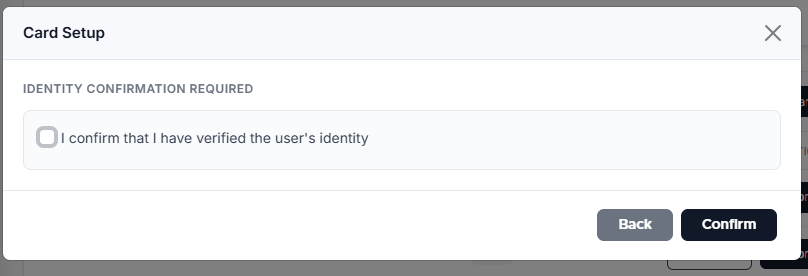
Click Next. If the In Person method was chosen a reminder to verify the person is shown and must be confirmed to proceed.
-
Check I confirm that I have verified the user’s identity option.
-
Click Confirm. The Operation Success window pops-up if the card has been successfully setup.