
You can assign a new Keyek Card to the User.
Keyek Cards must be added first before they are allocated to the user.
-
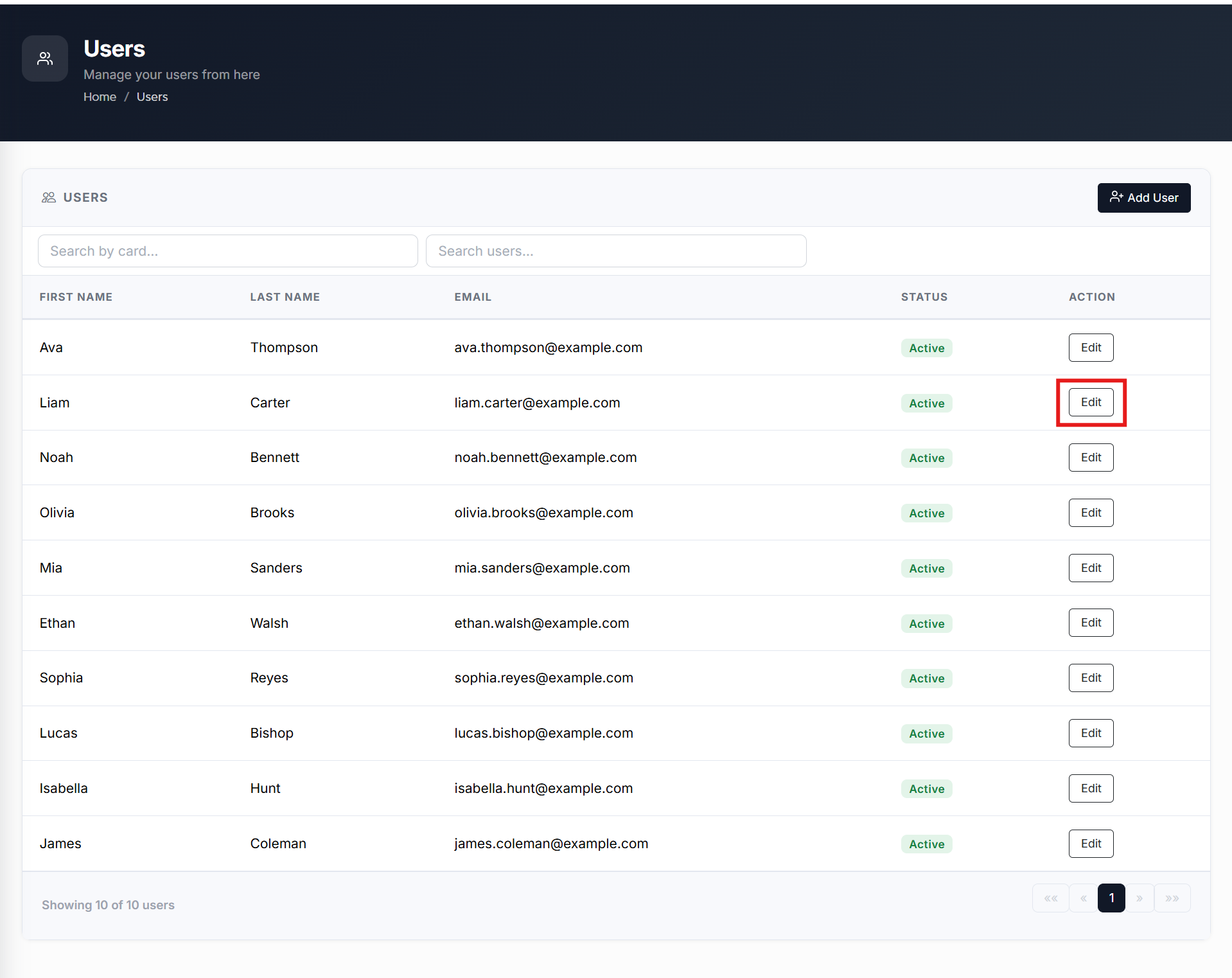
From the Home page, click on Users to open the Users - Manage your Users page displaying the list of existing users.
or
In the Home page, go to the Users option from the left navigational pane and click on it. The Users -
Manage your users from here page opens up displaying the list of existing users.
-
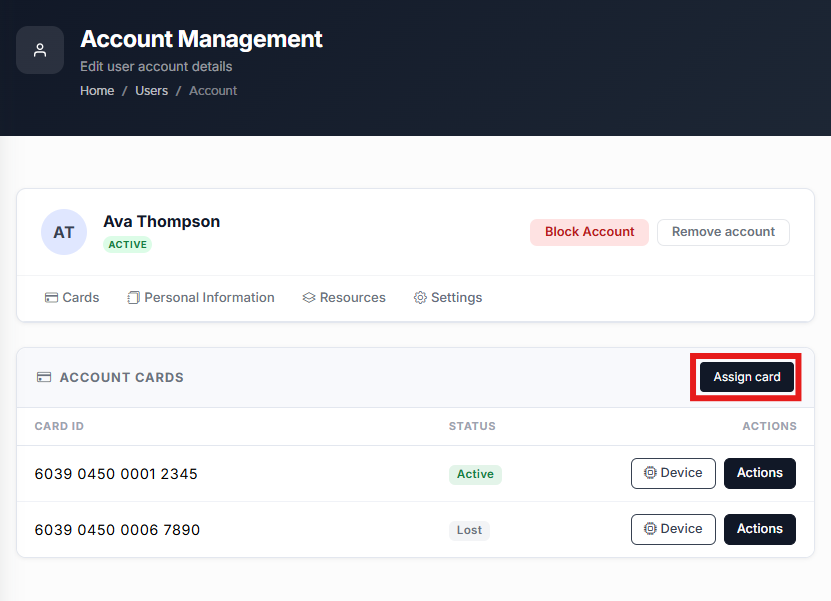
Navigate to the User you wish to make necessary changes to and click Edit. The Users Account Management page opens displaying the list of Accounts Keyek Card information.
-
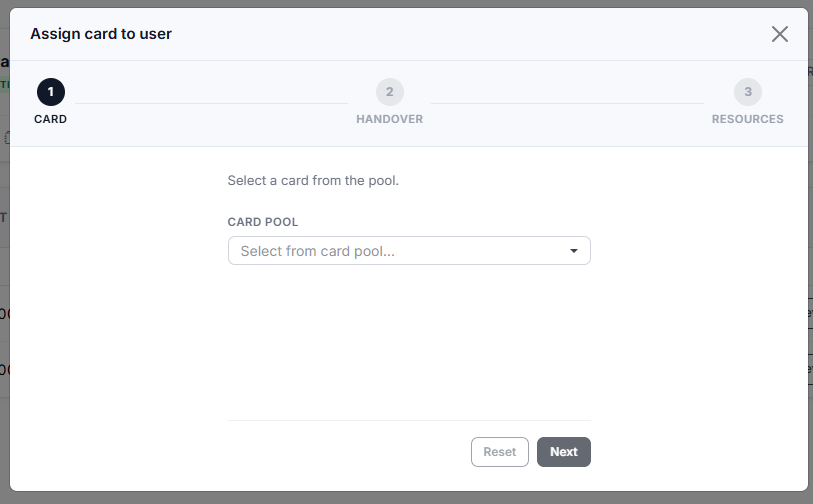
Click Assign Card. The Assign New Card window opens up.
-
From the drop-down Select the Keyek Card you wish to assign to the user.
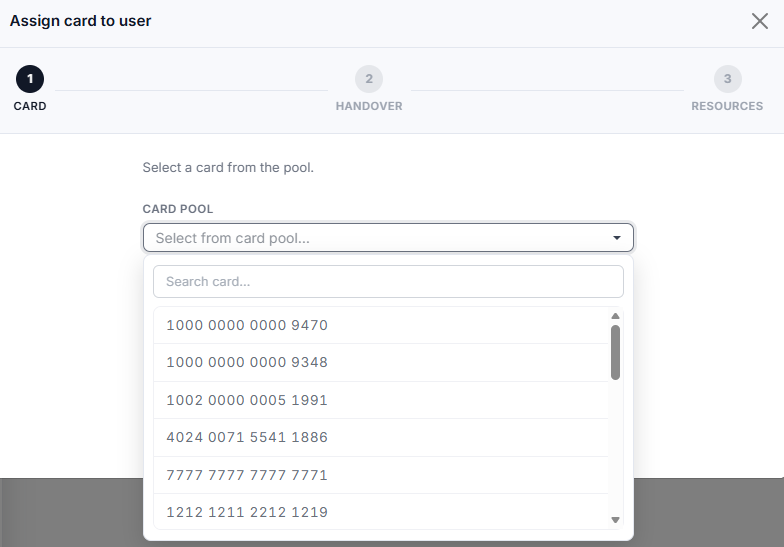
Optional: You can search for a specific card
-
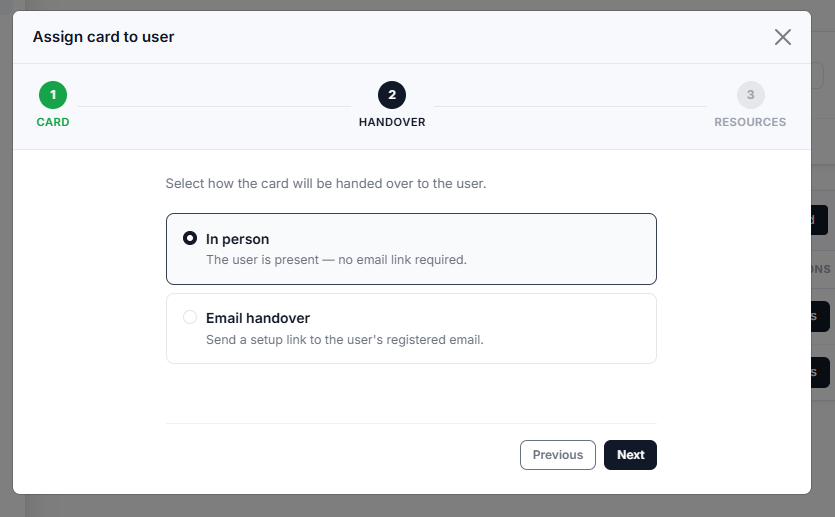
Click Next. The Handover window opens up displaying the handover options.
-
In the Handover Mode, select one of the two handover options from the list:
-
In Person: By default, this option is selected. Retain this selection if you wish to handover the card in person.
-
Email Handover: Select this option, if you wish to handover the card via email.
-
Enter the timeout duration in hours: Enter the timeout duration info.
-
-
-
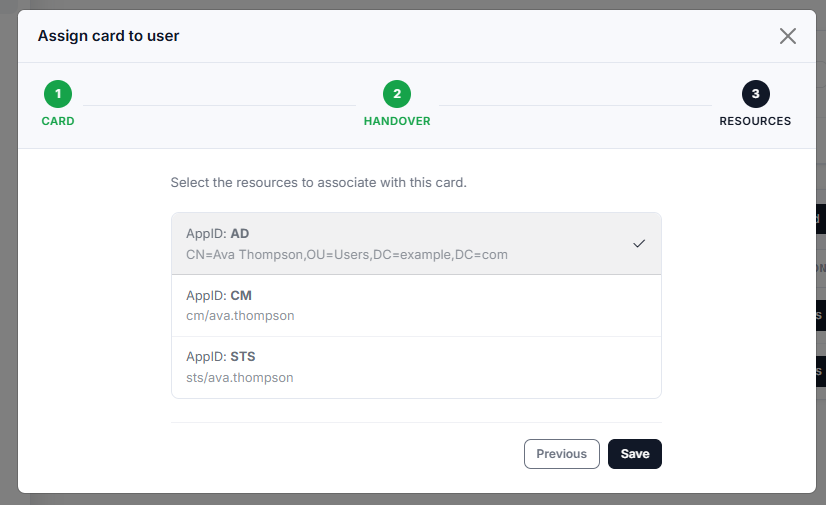
Click Next. The Resource window opens up displaying the list of resources you can assign the cards to.
-
Select the available resources and click Save. The Success window pops-up if the card has been successfully assigned to the User.